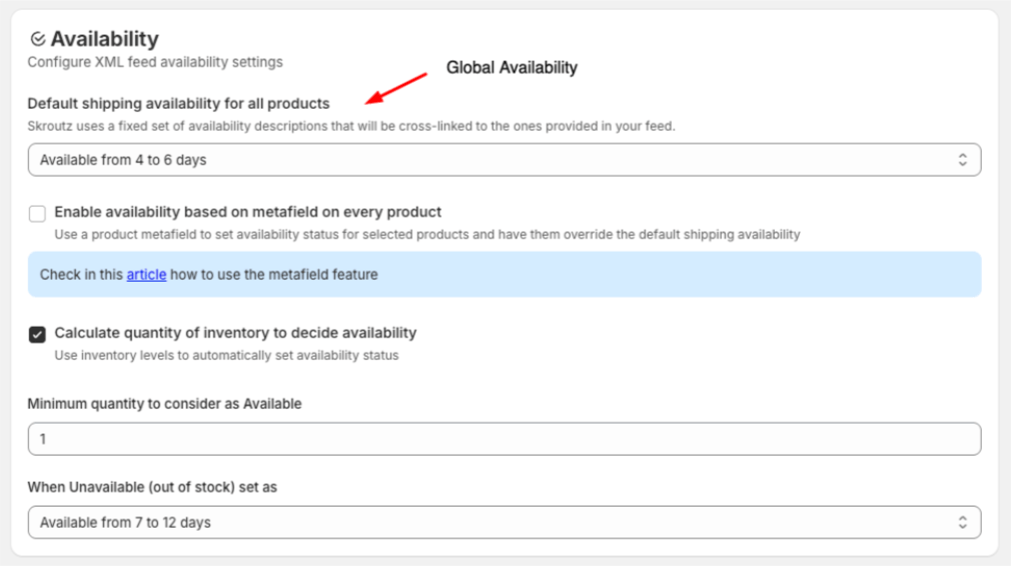
This guide shows you how to enable per-product availability and ensure those values override the global availability setting in your Skroutz XML feed.
Overview
This option creates a product metafield with four predefined Skroutz availability values. It lets you specify availability per product (e.g., In stock, Available from 1 to 3 days) instead of using only one global setting. When you regenerate the XML, any product with a metafield value will override the default availability.
Prerequisites
- You have the app installed and connected to your Shopify store.
- You can access Products in Shopify admin.
Steps
Step 1: Enable the Feature in the App
- Open the app in your Shopify admin.
- Go to Skroutz Connect Settings > Availability.
- Check the Enable availability based on the metafield on every product.
- Click Save.
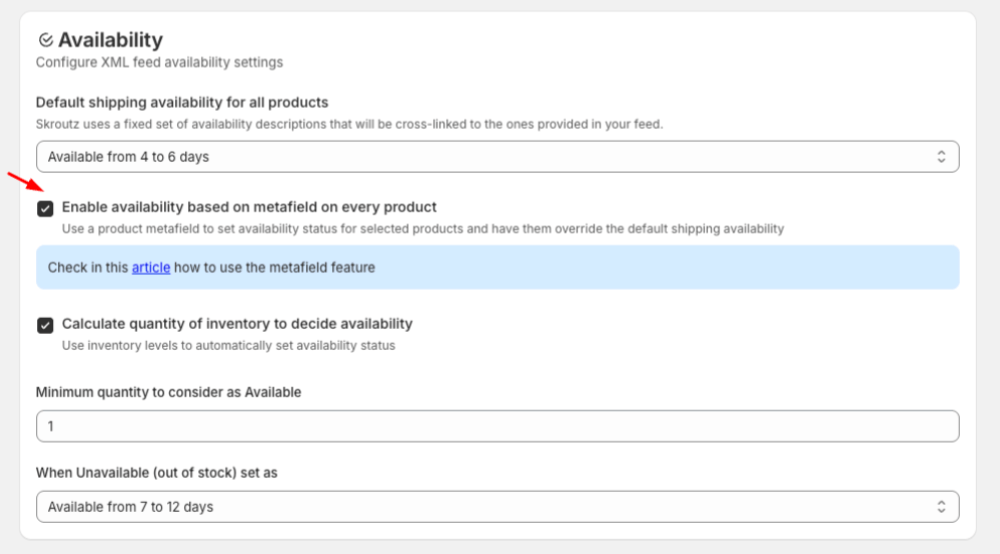
Step 2: Confirm the Metafield is ready
After saving settings, the app automatically creates a metafield on every product with four predefined Skroutz availability values.
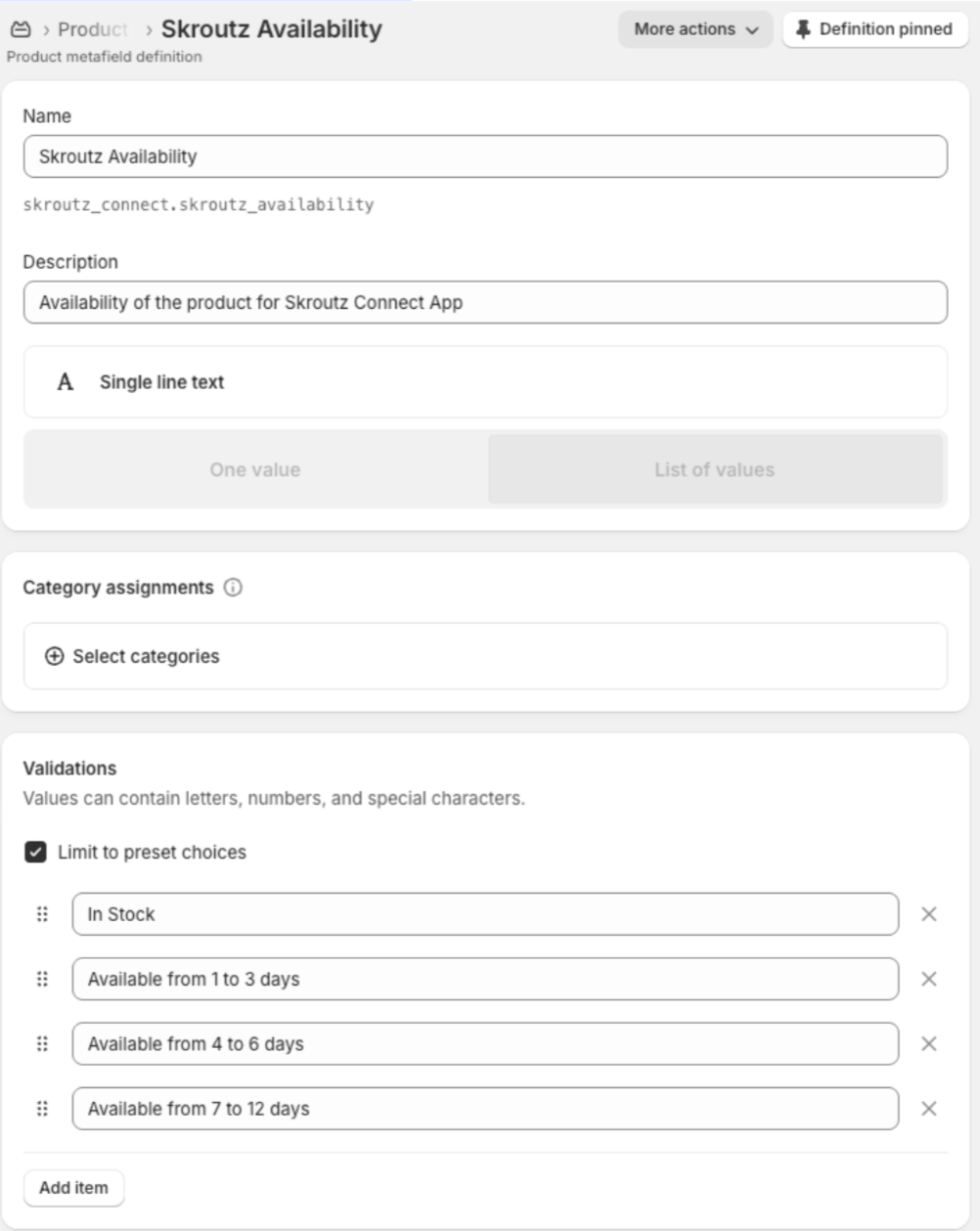
If, for any reason, you cannot see the metafield with these values as indicated on the figure, don’t hesitate to get in touch with us for support.
Step 3: Set Availability on a Product
- In the Shopify admin, go to Products and open a product.
- Scroll to the Metafields section.
- Find Availability for Skroutz.
- Pick one of the four predefined values from the dropdown.
- Click Save on the product page.
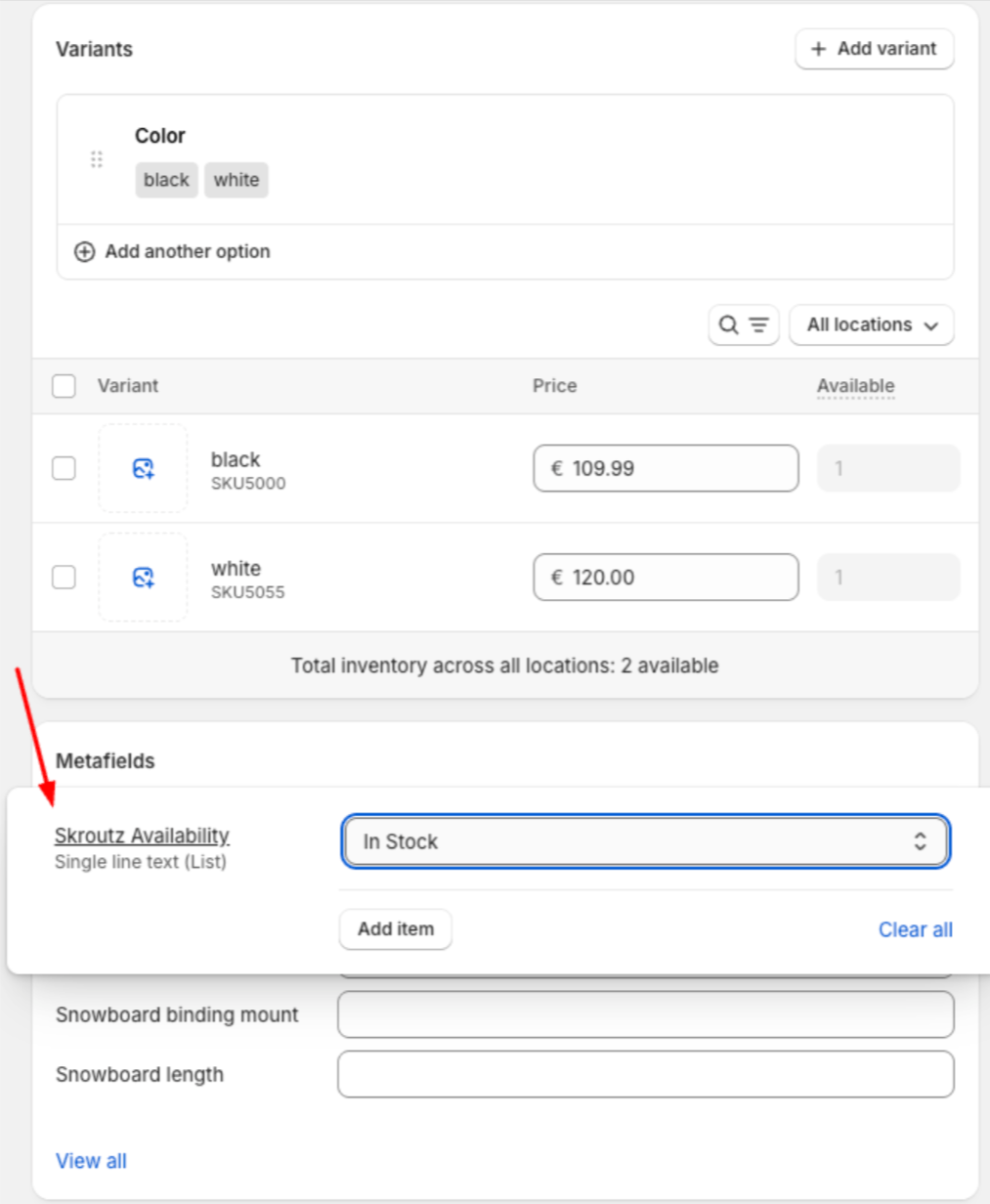
Note: You can repeat this for as many products as you like. Only products with a selected
metafield value will override the global availability.
Step 4: Regenerate Your XML Feed
- Return to the app.
- Click Generate XML (or Regenerate Feed).
- Wait for the confirmation that the new XML has been generated.
How Overrides Work
- If a product has a metafield value, then the feed uses that product’s value.
- If a product does not have a metafield value, then the feed uses your global availability from
app settings.
Troubleshooting
- I don’t see the metafield on products.
- Make sure the feature is enabled and you clicked Save in the app.
- Refresh the product page in Shopify.
- If still missing, disable and re-enable the feature, then save again.
- My XML didn’t change after I set values.
-
- Confirm you saved the product in Shopify.
- Regenerate the XML in the app.
- Check that the product actually has a metafield value selected (not blank).
-
- Only some products show the new availability.
- That’s expected if only those products have the metafield set. Others fall back on the global
setting.
- That’s expected if only those products have the metafield set. Others fall back on the global
FAQs
- Which availability values are supported
- The metafield provides four predefined options compatible with Skroutz. Select the one that best matches each product’s stock status.
- Can I revert to using only the default availability?
- Yes, uncheck the option in Skroutz Connect settings, and only the default availability will be used.