 Install free
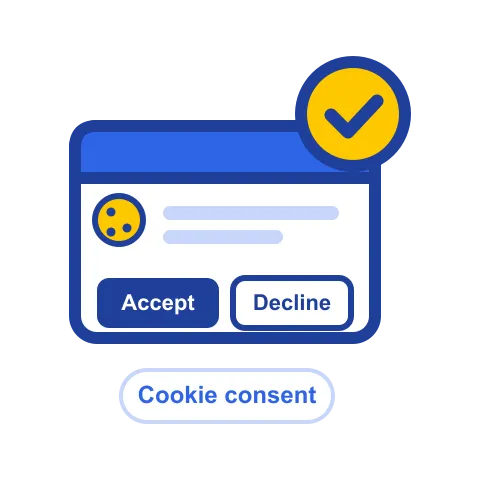
Cookie consent on a Shopify store means three things. Non-essential cookies and tags wait until a visitor has made a choice. The visitor’s choice is recorded. And the choice is passed on to the tags, apps and checkout that depend on it. Shopify provides part of this, through its privacy settings and an API that apps use to read consent. The rest, including the banner itself and the rules for loading tags, is down to the store owner or the app you install.
This guide walks through what to check, what Shopify handles, and how to confirm the setup works on your live store. It is practical guidance, not legal advice. Consent rules differ by country and by state, so a lawyer in your main markets should review the final setup.
Set Up Cookie Consent on Your Shopify Store Today
Scan your store, show a banner that waits for each choice, and keep a record of every decision. Free to start, live in minutes.
Get for freeWhat Shopify handles and what it doesn’t
Shopify has its own privacy settings under Settings, then Customer privacy. These control how the store collects consent for marketing and how it handles the consent signals that its own checkout and apps send.
Shopify’s Customer Privacy API is what makes that possible. It lets apps read a visitor’s consent choice and react to it, so that tracking pixels and checkout events can follow the choice. An app has to use the API to respect consent. Installing a tag without connecting it to the API means that tag keeps running no matter what the visitor chose.
What Shopify doesn’t do for you is the banner. The built-in settings cover the basic cases, but a store selling into the EU, the UK, or US states with opt-out rules usually needs a banner that asks for consent before loading non-essential cookies, offers a way to decline, and records the answer. That is the part most stores need an app or a custom setup for.
Step 1: List the cookies and tags your store actually sets
You cannot set consent correctly until you know what needs it. List everything that stores data on a visitor’s device or sends data to a third party:
- performance tags, such as Google Analytics
- advertising pixels, such as Meta, TikTok and Google Ads
- review and loyalty widgets
- chat and live support tools
- any custom scripts your developer has added
Run a scan of the live store rather than relying on the app list. A scan finds scripts that were added by hand or by themes, which an app list won’t show.
Step 2: Sort them into categories
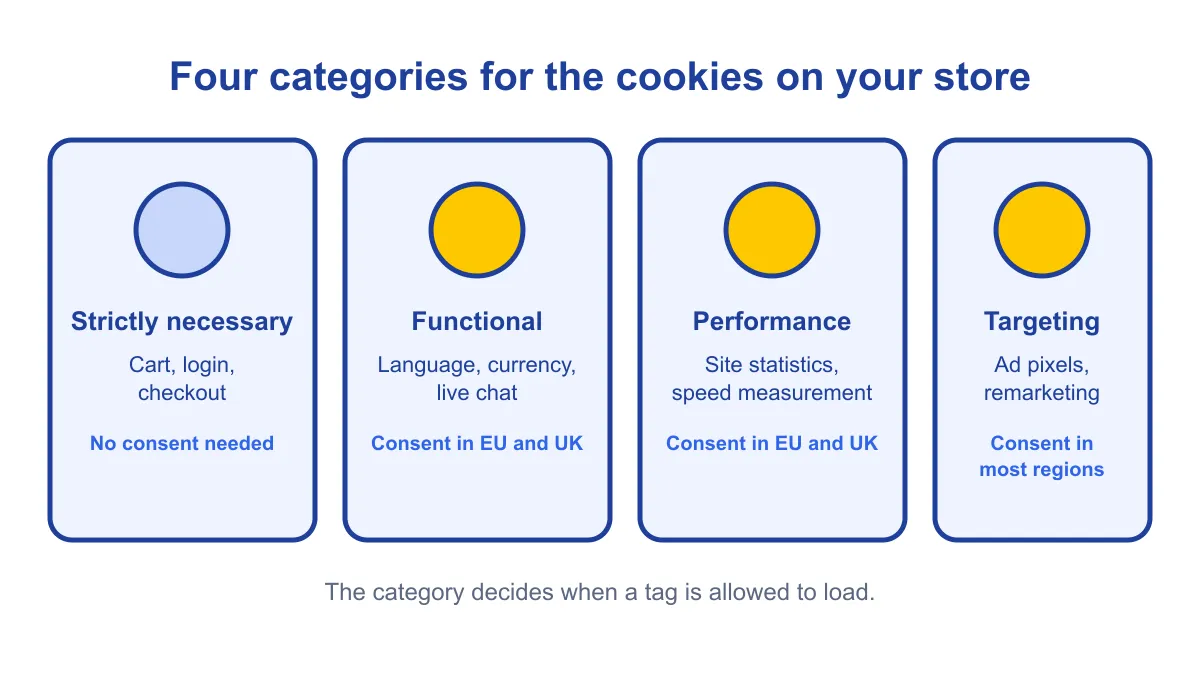
Most consent frameworks sort cookies into the same few groups:
- Strictly necessary: the cart, login and checkout cookies that the store needs to work. These don’t need consent.
- Functional: settings such as language, currency or live chat. In the EU and UK these need consent unless the store strictly needs them.
- Performance: site statistics and speed measurement. In the EU and UK these need consent before they load.
- Targeting: advertising pixels and remarketing tags. These need consent in most regions with consent rules.
The category decides when the tag can load. A tag in the wrong category is the most common cause of a consent failure.
Step 3: Configure the banner
A banner that meets the basic requirements in the EU and UK must:
- appear before any non-essential tag loads
- offer an option to decline that is as easy to use as accepting
- let the visitor choose by category, not only accept or reject everything
- record the choice, and let the visitor change it later
- link to your privacy policy and cookie section
Many banners fall short on the second point. A large “Accept” button next to a small text link to decline is the pattern regulators have criticised most, so give both choices equal weight.
For US stores, the picture is different. Many states require an opt-out of sale or sharing rather than prior consent, and they recognise the Global Privacy Control signal. Check which states you sell into before deciding whether a banner is required or only a clear opt-out link.
Step 4: Connect the tags to the consent choice
This is where most setups fail. A banner that records a choice does nothing if the tags ignore it.
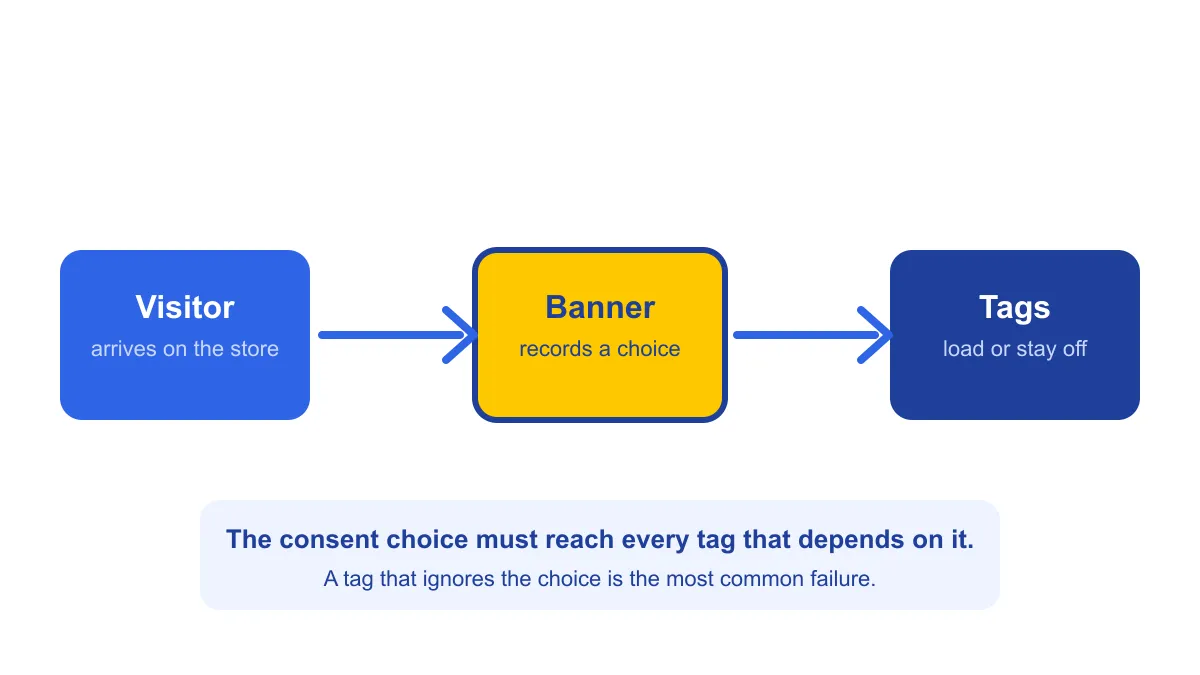
Check that:
- performance and targeting tags wait for their choice before they load
- the Google tags use Consent Mode, so they receive the signal even when the visitor declines
- the apps you install read the choice through Shopify’s Customer Privacy API, or through their own documented integration
- the checkout respects the same choice
If a tag can’t be connected to consent, remove it or move it behind a choice the visitor can make.
Step 5: Test it on the live store
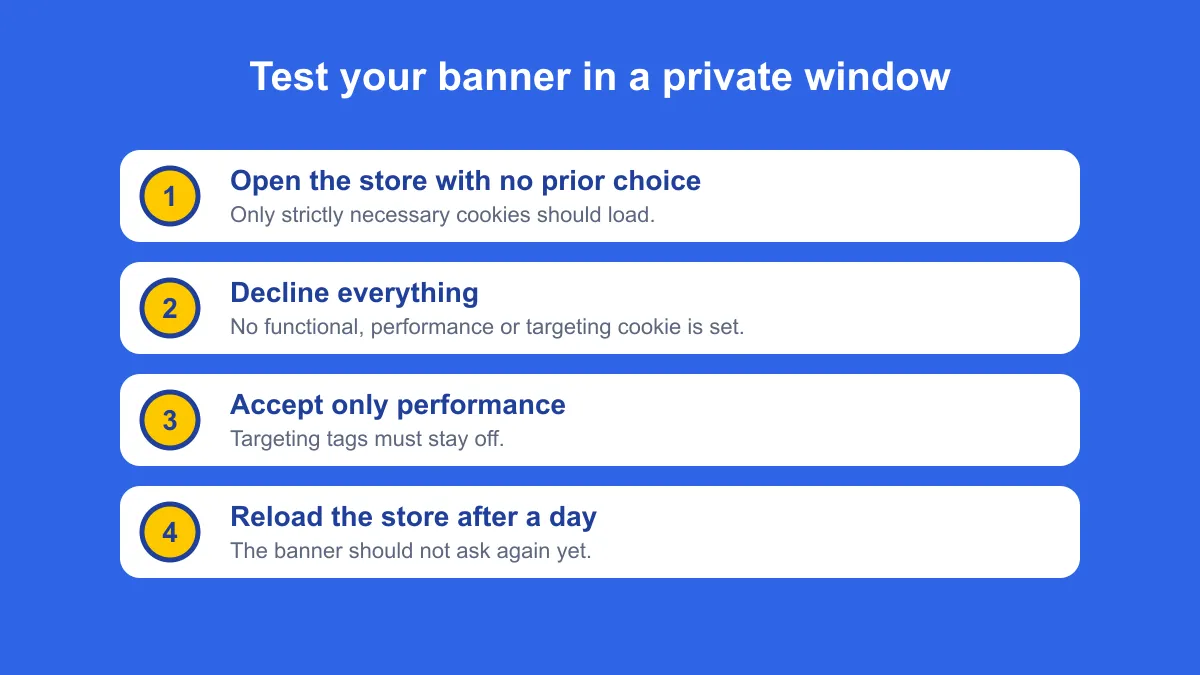
Testing on your own logged-in browser shows very little, because cookies from earlier visits are still there. Use a private window and test each case:
- Open the store with no prior choices. Check which cookies and tags load before any choice is made. Only necessary cookies should appear.
- Decline everything. Check that no functional, performance or targeting cookie is set, and that the store still works.
- Accept only the performance category. Check that targeting tags stay off.
- Accept everything. Check that the tags load, and that they are the ones you listed in Step 1.
- Close the browser and return. Check that the banner remembers the choice and doesn’t ask again straight away.
Write down what you find. If a tag loads before the choice, or after a decline, that tag needs fixing before the setup is complete.
Make Your Shopify Store GDPR & Cookie Compliant in Minutes
Start Free on ShopifyCommon mistakes
- Assuming the theme handles consent. Themes often load tags of their own. Include them in your scan.
- Using a banner that only offers “Accept”. A banner with no real option to decline doesn’t give visitors a choice.
- Leaving old tags in place. When you remove an app, check that its script is gone from the store too.
- Testing in your own browser. Your earlier choices and cookies hide the problem. Test in a private window.
- Forgetting the cookie policy. The banner has to link to a policy that lists the same cookies the banner names.
How this fits with your privacy policy
Your privacy policy and your cookie banner have to describe the same things. If the policy says you use performance and targeting cookies, the banner must give visitors a way to refuse them. If the banner lists a category your policy doesn’t mention, update the policy. For the policy itself, see how to write a Shopify privacy policy.
Where Pandectes fits
Pandectes is a Shopify app that covers the banner, the scan and the consent records in one place. It runs the cookie scan on the live store, lists the cookies and tags it finds, shows a consent banner that waits for each visitor’s choice, and records those choices. The app is listed as a Google Certified CMP, supports Google Consent Mode v2, and reads consent through Shopify’s Customer Privacy API. You can find the app and its free plan on the Shopify App Store.
If you are deciding between apps before you set up consent, read how to select the ideal cookie consent tool for your Shopify store. For the wider compliance picture, see the complete guide to Shopify GDPR compliance.
Start Free with Pandectes
Free plan available. 7-day free trials on all paid features. No setup fees. Cancel anytime.
Start Free on Shopify